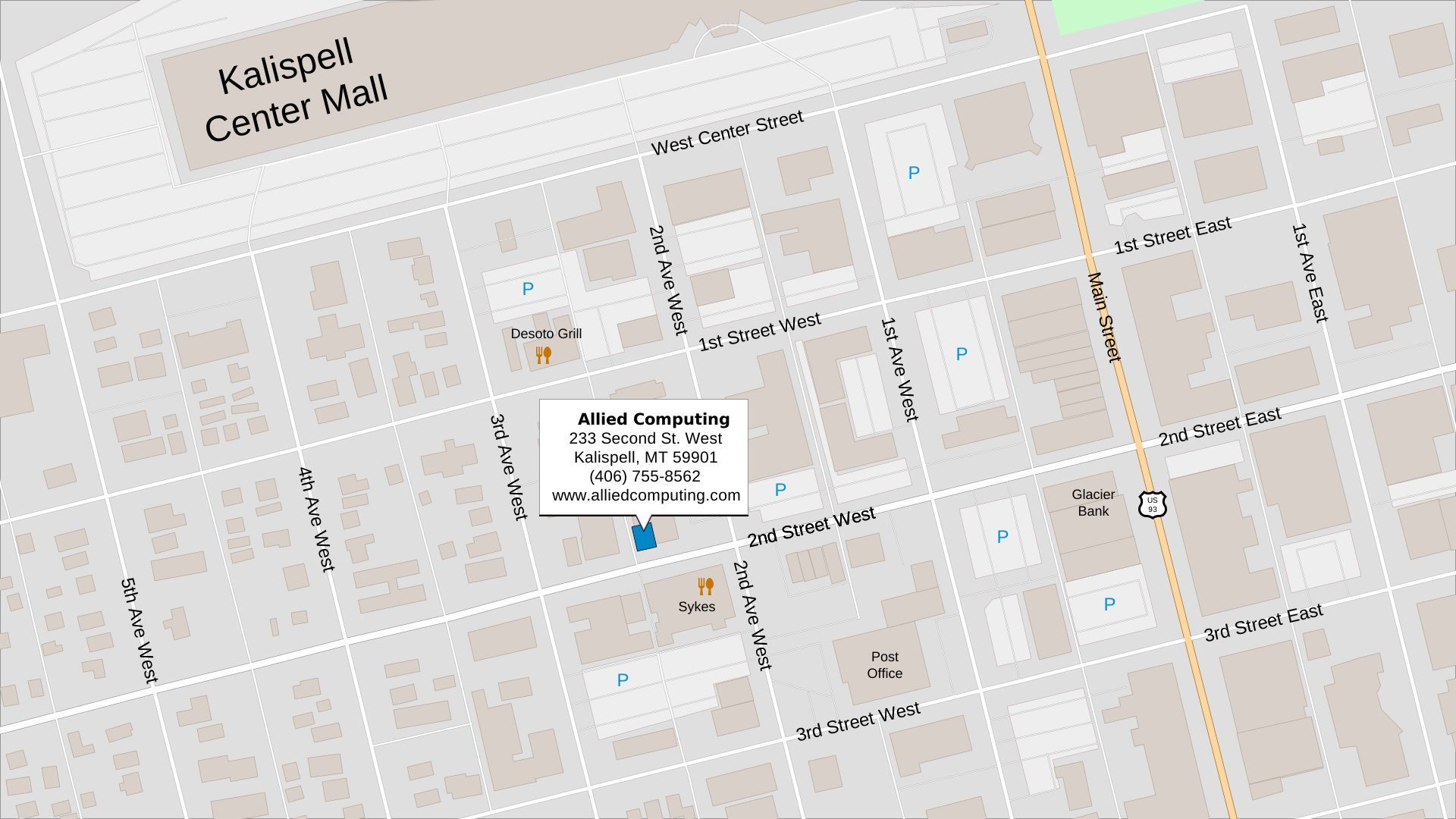
Hello,
Welcome to
Allied Computing
Services Offered & Contact Information
The things we are good at and love doing

Macintosh Service
We are an Apple Authorized Service Provider. We offer certified, in-warranty and out of warranty repairs on all Macintosh computers. We also offer upgrades and maintenance.

iPhone, iPad &
iPod Service
As an Apple Authorized Service Provider we offer Apple certified, in-warranty and out of warranty repair service on iPhone, iPad, and iPod devices.

Repair Process
and Prices
Info on repair pricing and things you need to have and do before you bring your computer in for service.

Website Creation
We hand build custom websites. From simple sites that advertise a single product or service to full-featured e-commerce solutions, we can create a website that meets your needs.

Sales
As an Apple Authorized Reseller, we offer the full line of Apple computers, accessories, iPads, iPods and more. Our experts can help you choose the best hardware and software solutions to meet your needs.

Education & Training
You have questions? We have answers. We offer personalized, hands-on training on your Macintosh computer and iOS devices.

Contact Us

Store Hours
| Mon | 8:30 am | - | 5:00 pm |
| Tue | 8:30 am | - | 5:00 pm |
| Wed | 8:30 am | - | 5:00 pm |
| Thu | 8:30 am | - | 2:30 pm |
| Fri | 8:30 am | - | 5:00 pm |
| Sat | Closed | ||
| Sun | Closed | ||

Appointments
You do not need an appointment to come in and see us. Simply stop by any time we are open, and we will be happy to assist you.

Remote Support
We offer remote support via RemotePC. This allows us to see and interact with your Macintosh computer remotely.

Service Plans
Service plans with discounted rates and priority service are now available for your Mac and iOS devices.
Repair Process and Prices
What you need to know about service at Allied Computing
Current Prices
Service Rates:
In shop service: $90 / hour
Expedited Service: $180 + (Normal Rate x 2)
Macintosh Computers
Macintosh Computers service preparation and process:
Prepare for service on your Macintosh computer:
- Backup: Make sure you have a backup of your computer. We recommend using the built-in Time Machine program provided by Apple along with an external hard drive to make a complete backup of the computer. If you have questions or need help backing up your Mac, please let us know when your computer is checked in for service. Instructions for setting up and using Time Machine are available at the Apple Support Website. Please note that Allied Computing and Apple are not responsible for lost data.
- Computer Password: For software troubleshooting, we will need the password for an administrative account on the computer.
- Firmware Password: If your computer has a firmware password enabled, please disable the password before bringing the computer in.
- Apple ID information: Ensure that you know your Apple ID and password. This is needed to turn off Find My Mac and is required for most hardware related repairs and to install some software updates. This is the same account used for the App Store, iTunes and iCloud.
- Notebook: If this is a notebook computer, and your issue involves the battery or charging, please bring in your power adapter.
- Accessories: If your problem involves the keyboard, mouse, or any other accessory, please bring the accessory with you.
- Information: When you bring your computer in, we will collect contact details including your name, address, phone number, and email address.
- Problem: We will take notes on the type of problem you are having, when the problem occurs and any error messages that are presented.
- Diagnostic: We use a variety of diagnostic tools and resources (both software and hardware) to determine the underlying source of any problems you are experiencing. We may have to open or partially disassemble the computer during the diagnostic process depending on the type of issue.
- Proposed Resolution: Once we determine the source of the problem, we will propose a resolution. This may include software updates, preference changes, hardware replacement, or customer education.
- Service Quote: We will let you know the cost of the proposed solution, any needed parts, and labor fees.
- Provide Service: Once approved, we will implement the solution, install any necessary parts and perform the needed service.
- Verification: After service is complete, we run additional tests on the computer to ensure everything is working and that no new issues have arisen.
How much does Macintosh service cost?
- Warranty, AppleCare+, or consumer law: There's no charge if the issue is covered under warranty, AppleCare+, or consumer law. Please ask for details about what is covered or check the following resources: Apple Warranty Details and AppleCare+ Terms and Conditions. You may verify warranty status on your device by visiting the Apple Check Coverage Webpage.
- Basic Tune Up $90.00: The fee for a basic tune up is $90. This fee includes: A diagnostic of the computer to ensure the hardware is working correctly. Installation of necessary software updates, including macOS, and other installed applications. A scan for and removal of any malware, viruses, adware, etc. We can also remove unnecessary items such as multiple, duplicate downloads along with outdated and unnecessary software. We will also optimize / defragment your hard drive if necessary.
- Diagnostic $90.00: We charge a flat-rate diagnostic fee of $90 on all non-warranty computers brought in for service. The fee includes a diagnosis of the underlying cause of any problems you are having along with a proposed solution which may include part replacement, hardware upgrades, and software updates.
- Standard Shop Rate $90.00 / hour: We charge $90 / hour for regular (non-warranty) in-shop repairs. We bill in quarter-hour increments after the first hour.
- Education, Training, Device Set-Up $90.00 / hour: One-on-one or small group, education, training and device set-up is available in our office for $90 / hour. These services are billed with a one-hour minimum.
- Expedited service $180 + (Normal Rate x 2): Expedited service moves you to the front of the repair queue, in front of all other clients. The fee for expedited service is $180 + double the normal hourly rate. This fee applies to all services including diagnosis and in-shop labor.
- After Hours, Evenings, Weekends & Holidays: After hours service is available by appointment only. Fees vary depending on availability and time.
- Support Contracts: Customers that require ongoing service and support may purchase a pre-paid support agreement from us. Plans start at 25 hours and include a discount on service fees.
Macintosh Notebook Battery Prices:
We charge the same as Apple for parts for battery replacement. Apple Mac Repair Prices. We also charge an installation fee for all out of warranty batteries. Your product is eligible for a battery replacement at no additional cost if you have AppleCare+ and your product's battery holds less than 80% of its original capacity. Call for details on your specific model.AppleCare+
AppleCare+ gives you expert technical support and hardware coverage from Apple, including accidental damage protection. Each incident of accidental damage is subject to a service fee as noted below.| AppleCare+ service prices for accidental damage | ||
|---|---|---|
| Mac Model | Screen or external enclosure only (with AppleCare+) | Other damage (with AppleCare+) |
| All Mac models with AppleCare+ | $99 | $299 |
| Terms and conditions apply, see AppleCare+ Terms and Conditions for complete details. | ||
iPhone, iPad and iPod
iPhone, iPad and iPod service preparation and process:
Prepare for service on your iPhone, iPad or iPod:
- Backup: Make sure you have a backup of your device. We recommend using iCloud backup and iCloud photo library. If you do not wish to use iCloud, you can also make a backup to your Mac or PC. To ensure the safety and privacy of your data, we are not able to back up your device to one of our computers. Instructions for both types of backup can be found on the Apple Support Website. If you have questions or need help backing up your device, please let us know when it is checked in for service. Please note that Allied Computing and Apple are not responsible for lost data.
- Apple ID information: Ensure that you know your Apple ID and password. This is needed to turn off Find My iPhone which is required for hardware repairs including battery or display replacement. Your Apple ID may also be required to restore, erase, or update the device. This is the same account information you use for the App Store, iTunes and iCloud.
- Power Adapter & Cord: If your problem involves charging, not turning on, or problems with the battery, please bring your power adapter and cord so we can test them as well.
- Accessories: If your problem involves a Bluetooth keyboard, mouse, headphones or any other external accessory, please bring the accessory, and any necessary cords with you.
- Personal Identification: In some cases, we may need to see a form of personal identification, like a driver’s license, passport, or other government-issued ID
- Information: When you bring your iOS device in, we will collect contact details including your name, address, phone number, and email address.
- Problem: We will collect information on the type of problem you are having, when the problem occurs and any error messages that are presented.
- Diagnostic: We use a variety of diagnostic tools and resources (both software and hardware) to determine the underlying source of the problem you are experiencing. We may have to open or partially disassemble the device during the diagnostic process depending on the type of issue.
- Proposed Resolution: Once we determine the source of the problem, we will propose a resolution. This may include software updates, preference changes, hardware replacement, or customer education.
- Costs: We will let you know the cost of the proposed solution, any needed parts, and labor fees.
- Provide Service: Once approved, we will implement the solution, install any necessary parts and perform the needed service.
Certain repairs, including all hardware service on iPads, iPods, and Apple Watch, can not be performed in our store, and require us to send the device to Apple. In these cases, we will handle all the paperwork, packaging and shipping of the device to the repair center. - Verification: After the service, we run tests on the device to ensure everything is working and that no new issues have arisen.
How much does iPhone, iPad and iPod service cost?
- Warranty, AppleCare+, or consumer law: There's no charge if the issue is covered under warranty, AppleCare+, or consumer law. Please ask for details about what is covered or check the following resources: Apple Warranty Details and AppleCare+ Terms and Conditions. You may verify warranty status on your device by visiting the Apple Check Coverage Webpage.
- Diagnostic $0: We do not charge a diagnostic fee on iOS devices brought in for service. If the device requires a hardware repair, we will provide a price quote for the parts and labor after diagnostics are complete.
- Device Restore $0: We do not charge a fee to restore a disabled iOS device. If you require assistance setting up the device after it is restored, the setup will be billed at our normal rate. If you have 'Find My Device' enabled, you will need your Apple ID and Password to activate the device after the restore.
- Labor Rate $90.00 / hour: We charge $90 / hour for regular (non-warranty) hardware related, in-shop repairs. We bill in quarter-hour increments after the first half hour for iPhone service.
- Education, Training, Device Set-Up $90.00 / hour: One-on-one or small group, education, training and device set-up is available in our office for $90 / hour. These services are billed with a half hour minimum.
- Expedited service $180 + (Normal Rate x 2): Expedited service moves you to the front of the repair queue, in front of all other clients. The fee for expedited service is $180 + double the normal hourly rate. This fee applies to all services, diagnosis, and labor.
- After Hours, Evenings, Weekends & Holidays: After hours service is available by appointment only. Fees vary depending on availability and time.
iPhone screen replacement costs
We charge the same as Apple for iPhone display replacement parts. Apple iPhone Repair PricesAllied Computing charges a $60 labor and supplies fee to install displays on out of warranty iPhones.
iPhone battery replacement costs
We charge the same as Apple for iPhone battery replacement parts. Apple iPhone Repair PricesAllied Computing charges a $60 labor and supplies fee to install batteries on out of warranty iPhones.
If your iPhone has any damage that impairs the replacement of the battery, such as a cracked screen, that issue will need to be repaired along with the battery replacement. Some device power issues are caused by factors other than the battery. We'll test your device to see if it has a battery issue or a different power issue. If your device has a non-battery power issue, we'll quote you the repair price after we determine the cause. If you have AppleCare+, it covers your iPhone at no additional charge if your product's battery holds less than 80 percent of its original capacity.
Other iPhone repairs
Do you need a repair for other issues like a camera not working, not charging, a cracked enclosure or liquid damage?- If your iPhone issue is covered by the Apple warranty, an AppleCare+ plan, or consumer law, there's no charge. This does not include accidental damage, which requires a fee.
- If your iPhone was damaged, and you have AppleCare+, the coverage includes accidental damage protection. Each incident has a service fee.
- If your iPhone was damaged, and you don't have AppleCare+, your repair fee will vary, depending on the repair. Call us for details about your specific iPhone.
iPad / iPod service and costs
We are unable to perform hardware repair of iPads or iPods in our store including battery and display replacements. All hardware related iPad or iPod service requires the device to be sent to Apple.Apple iPad Repair Prices.
Apple iPod Repair Prices.
Portfolio
Some examples from our web design portfolio













Testimonials
What clients are saying about us
If you are in need of any help with your Apple product, I HIGHLY recommend Allied Computing. They are extremely knowledgeable, and being dedicated to Apple products makes them an extra special asset to the community. I'm very glad I chose Allied, and should I need help with my Apple products, I wouldn't go anywhere else.
- Lucas Gray
This place is AWESOME! They went above and beyond to help me out when my computer died and explained things clearly but never condescendingly to my un-tech-savy self. I live 2 hours outside of town, and they worked with me to make things easy for me to drop off and get back my things!
- Kate Whipple-Kilmer
Amazing customer service. Very knowledgeable staff. Never taking my Apple products anywhere else!
- Jodene Matalone
We had what ended up being a very minor problem with our MacBook Pro. Calvin was amazing. He broke everything down into layman's terms, so we could understand. I also asked about upgrading one of our other machines and Calvin's candor and honesty were greatly appreciated as he could have very easily taken advantage of us. I would rather come here than a Mac store any time!
- Brad Brockman
Calvin is a genius with Apple computers. The first time we took our computer to him, it was in pieces from another store, and he fixed it in a day. The second time it turned out the problem was with our home Wi-Fi and he figured that out too. Wouldn't go anywhere else!!
- Lynn Dykstra
Incredibly knowledgeable, clear, and helpful. Superb customer service. Went above and beyond. Helped with several issues I had with my MacBook Pro as well as software and performance glitches. Yes, yes, yes!
- James Johnson
Allied Computing and owner Calvin Hill are worthy of praise on every front. I love Apple, and when service is required (almost never), Allied Computing is a comfort and a pleasure.
- William Rice
I don't know anyone more knowledgeable about Apple products than Calvin.
- John McLeod
Frequently Asked Questions
The things everyone wants to know
- Q: Does Allied Computing sell new Macintosh Computers, iPads, iPods and accessories?
- A: Yes! Allied Computing is an Apple Authorized Reseller. We sell the full range of Macintosh computers, iPad, iPod, Apple TV, HomePod and Apple accessories.
We do not sell the iPhone or Apple Watch at this time.
- Q: Is it OK to use a disinfectant on my Apple product? How do I clean my Apple products?
- A: Yes. Using a 70 percent isopropyl alcohol wipe, 75 percent ethyl alcohol wipe, or Clorox Disinfecting Wipes, you may gently wipe the hard, nonporous surfaces of your Apple product, such as the display, keyboard, or other exterior surfaces. Don't use products containing bleach or hydrogen peroxide. Avoid getting moisture in any opening, and don't submerge your Apple product in any cleaning agents. Don't use on fabric or leather surfaces. More info can be found on the official Apple webpage: How to clean your Apple products.
- Q: What is the deal with Catalina (macOS 10.15), Big Sur (macOS 11), Monterey (macOS 12), Ventura (macOS 13), and Sonoma (macOS 14)? I heard old programs won't work anymore, is this true?
- A: Yes. Older software that has not been upgraded to be 64-bit compatible will no longer work under macOS 10.15, or newer. Some examples include: Final Cut Studio, Aperture, Microsoft Office 2011, QuickBooks 2015. Most of these programs have various updates available. Some updates are free, while others have an associated fee. Call or stop in and we would be happy to discuss your upgrade options.
There is a great piece of software, Go64, available from St. Clair Software at https://www.stclairsoft.com/Go64/index.html that can assist you in determining what, if any, software on your computer is not compatible with the update.
- Q: Can I upgrade my Mac to a newer operating system? Should I upgrade to the new macOS?
- A: Maybe. Typically, we recommend upgrading to take advantage of new features and security. In some cases, older software may no longer work if you upgrade. For macOS 10.14 and newer, Allied Computing recommends a Mac with at least 8 GB of RAM and a Solid State Drive for best performance. We would be happy to discuss your upgrade options with you.
- Q: Can Allied Computing install a replacement battery in my iPhone? What does a battery replacement cost?
- A: Yes. As an Apple Authorized Service Provider, Allied Computing can install a genuine Apple replacement battery in your iPhone. The cost depends on the model of the iPhone.
If your iPhone has any damage that impairs the replacement of the battery, such as a cracked screen, that issue will need to be resolved prior to the battery replacement.
Check out the Repair Process and Pricing section for costs.
- Q: What is the most important thing I should do to protect my Mac or iOS device?
- A: Make a Backup. Then make sure your backup is working and actually backing up your data. In the unfortunate event that something horrible happens to your equipment (Theft, liquid spills, drops, crashes, etc.), the most important thing is to have a backup of your data. While it is never easy to have your Mac or iPhone out of commission, it helps ease the pain if you know all your pictures, movies, music, documents and other data are protected.
- Q: What kind of products do you offer service, upgrades, training and repairs on?
- A: We ONLY service products made by Apple. This includes Apple Macintosh computers, iPad, iPhone, iPod, Apple TV and Beats. We service desktops such as the iMac, Mac mini, and Mac Pro tower, as well as portable systems like the MacBook Pro, and MacBook Air. We also offer service on iOS devices such as the iPhone, iPad and iPod.
We can assist you with other Apple products, but we may not be able to offer repair service, for example, we can help you set up your iPad, but we can't replace a display or battery, as those repairs require service directly through Apple. We are happy to help you facilitate any service we are unable to directly provide.
- Q: How long has Allied Computing been servicing Macintosh computers?
- A: We have been professionally repairing Apple Macintosh computers for over 33 years. Our store manager and head technician, Calvin Hill, got started on an Apple IIe computer back in 1983 before the Mac had even been invented. He was writing computer programs in BASIC and Pascal by the time he turned 10. At the age of 16, he started his professional career, doing computer repair, upgrades, programming, and maintenance, while still in high school. In 1994, he started his own business where he continues to serve the Apple Macintosh users of the Flathead valley and surrounding areas.
- Q: What are your service and repair rates?
- A: Please see the Repair Process and Pricing details above, or click here.
- Q: What areas do you service.
- A: We service the Flathead Valley of NorthWest Montana. This includes Kalispell, Evergreen, Whitefish, Columbia Falls, Bigfork, Creston, Lakeside, Somers, Woods Bay, West Glacier, Kila, Marion, and the surrounding areas.
- Q: How long do repairs take?
- A: In most cases, we can repair your Macintosh or iPhone within two business days unless parts are needed. Some repairs may take slightly longer, depending on the issue. Apple is very good to us and sends all in-stock service parts via FedEx. If your repair requires a part, it normally adds only one day to the repair time. If your repair is going to take any longer (parts on back order, or special circumstances) we will let you know. If your iPhone, iPad, or Apple Watch needs to be sent in for service, the turnaround time is normally 5 to 7 business days.
- Q: Can you transfer data from my old Mac to my new Mac?
- A: Yes. Normally this is a quick and easy process, however, depending on the age of your old Mac, and the operating system it is running, there may be some issues with certain programs. In particular, software that has not been updated to be 64-bit will not work on newer systems running Mac OS 10.15 or newer. Give us a call and we will be happy to explain the details and options for upgrading.
- Q: Do you do iPhone or iPad repairs? What does it cost?
- A: YES! As an Apple Authorized Service Provider, we are officially authorized to do iPhone and iPad service. Costs vary depending on the issue. Some items may need to be sent into Apple for repair, depending on the specific problem (i.e. iPads with damaged screens or needing battery replacement). Give us a call, or stop in, and we can discuss available service options.
- Q: Do I need to make an appointment before I bring my computer, iPhone, iPad etc. in for a repair?
- A: Nope. No appointment or call ahead needed. Just come by at YOUR convenience, anytime we’re open, and we’ll get you taken care of.
- Q: Do you offer warranty repairs and service? Do you honor the AppleCare+ extended warranty?
- A: Yes, absolutely! As an Apple Authorized Service Provider, we are 100% authorized by Apple to service your Macintosh computer, iPhone, iPad and iPod under warranty and AppleCare / AppleCare+. We use real Apple parts and all of our technicians are trained and certified by Apple in the repair of Macintosh computers and iOS devices.
- Q: Are accidents, drops, spills and other 'oops' moments covered by the warranty or AppleCare+ ?
- A: It depends on the type of coverage you have.
- Apple Standard Warranty: No. The warranty only covers 'defects in materials and workmanship', not damage caused by accident, abuse, misuse, fire, earthquake or other external cause including user error. The warranty also does not cover damage caused by service (including upgrades and expansions) performed by anyone who is not a representative of Apple or an Apple Authorized Service Provider. If your device has accidental damage, we may be able to repair it for you, but it's not covered by the warranty.
- AppleCare+: Yes AppleCare+ extends your coverage, adding warranty coverage for up to 3 years (Mac) or 2 years (iPhone, iPad, Apple Watch, Apple TV) from the original purchase date.
AppleCare+ also adds coverage for accidental damage, each incident is subject to a small service fee. Call or stop in for more information.
- Q: Do I need to call Apple before I bring my computer in for service?
- A: Nope. As an Apple Authorized Service Provider, we are fully authorized, trained and certified by Apple to repair your computer. You do not need to call Apple for approval or authorization before bringing it into us.
- Q: Can I upgrade my current Mac, or should I just get a new one? Can you help me decide what to do?
- A: We may be able to upgrade your current computer, we would be glad to help you decide what to do. There are several upgrade options available that can often help extend the life of your Macintosh. We hope your computer runs trouble free for several years, however, we know that there comes a time when what you really need to get the job done is a new computer. Meet with one of our expert Apple consultants, and we will aid you in determining the best course of action to meet your needs.
- Q: Do you rent computers?
- A: Sorry, we don't at this time.
- Q: Do you sell memory (RAM), hard drives, SSD, Keyboards, Mice and other upgrades?
- A: We sure do! We sell upgrades and enhancements for all types of Macs (old and new), including memory, hard drives, SSDs and other accessories. Because prices fluctuate regularly, please call or email us for current pricing and availability.
- Q: Do you match prices from other stores?
- A: No, however, we generally charge the same price as Apple for new equipment that you see listed on Apple's web page. On certain items such as RAM, Hard Drives, or SSD upgrades, we may be able to offer you substantial savings.
- Q: Do you sell service parts directly to customers?
- A: No, we do not. Our agreement with Apple does not allow us to sell Apple service parts directly to customers. We are happy to work with you to get your Mac, iPhone, iPad or other Apple device repaired, but in order to provide the highest quality of service and warranty on repairs, we have to do the service ourselves.
- Q: Are you owned by Apple directly? Are you an Apple Store?
- A: No, Allied Computing is an independently owned company.
As an Apple Authorized Service Provider, we do have a contractual relationship with Apple that allows us to acquire 100% real Apple parts and perform in-warranty and out-of-warranty repairs on Macintosh computers, iPhone, iPad, iPod, Apple TV and Beats.
As an Apple Authorized Reseller, we sell the current lineup of Apple Macintosh computers, iPads, iPods, Apple TVs, HomePods, and accessories.
- Q: Do you recycle old computers?
- A: We sure do. We believe in doing our part to keep the planet clean. We recycle our own equipment, stuff that we can no longer use in-shop, and we also take any Apple equipment you bring in for recycling and make sure that it is properly disposed of. We will also ensure that your data is non-recoverable from any device you bring in for recycling.
- Q: How much does it cost to have you build a website?
- A: There is a lot that goes into building a website. Prices vary depending on the complexity of the site, and the options you want available. As such, it's impossible to have a standard fixed price for all sites. There are 1000s of different options available and the only way to make sure you are getting what you really want is to set up a meeting with one of our consultants to go over your desires for the website. Some items, such as e-commerce and credit card processing increase the cost of creating a website. We can assist you in making anything from a simple online business card, up to a full-featured e-commerce site with custom products.
- Q: Do you sell or fix Windows PCs?
- A: No! Thank God no! We never have. We never will.
We're Mac Geeks! At Allied Computing, we love Apple products and everything about them. While we understand that some people still run Windows, we simply don't want to deal with all the problems that they have. (Viruses, Spyware, Registry Problems, Incompatible Hardware, etc.)
If you are switching from a PC to a Mac and want to transfer your data, we have the equipment and experience to transfer your stuff over. Keep in mind that Windows programs will not run directly on the Mac, and you may need some additional software to make everything work the way you're used to. We are happy to work with you during the transition from PC to Macintosh to make it as smooth as possible.
Whatever you do, please don’t ask us to help you de-virus, fix registry errors, clean spyware, or reinstall the OS on your Windows computer, because our "Windows Repair Kit" only has one tool, a very large hammer.
Meet the team
The individuals who make the company successful

Calvin Hill
Owner / Manager
Certified Mac Tech
Certified iOS Tech
Founded company in 1994
Apple Certified Mac Technician since 1994. Apple Certified Support Professional. Maintains Apple Product Professional status in Apple Sales Training. Received iOS certification in 2017.Calvin is experienced with servicing both hardware and software on all makes and models of Macintosh computers and iOS devices.

Devona Hill
Receptionist
Accounting
Certified iOS Tech
Joined company in 2014
Devona and Calvin met by chance in 1993 while both were still in school. They dated for a few years and married in the spring of 1996.When Allied Computing needed an additional employee in 2012, Devona gladly stepped in to fill the important role.

Shadow
Greeter
Chief Sniffer
Crowd Control
Joined company in 2018
Shadow has been coming to work with us since we adopted him from the Humane Society in 2018.He is always looking for a treat or scratch behind the ears.
If he had thumbs, he would probably be in charge.